

Freezing an item hides it from the POS, purchase and stock screens
while its history stays in every report. Use it for discontinued
products, duplicate codes and seasonal items. Deleting is only possible
for an item with no transactions at all, so freezing is the normal
choice. Available in all editions: ERP, Laundry, Restaurant, Retail,
Retail 2nd Edition, Salon and Weigh Scale.
Before you start
- Log in as admin or a user with Inventory permission.
- Check Reports → Stock Report: if the item still has
stock, adjust it out first so the stock value is correct.
Steps
- Open Master → Item Master. The ITEM MASTER screen
opens. - Select the item from the list, or search by name or barcode. Its
details fill the form.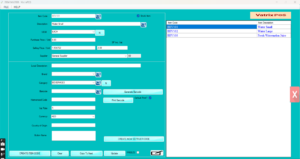
- Click FREEZE. Vatrix asks for confirmation. Click
Yes. - Click Clear. The item is now marked frozen and no
longer loads in POS Invoice or GRN. - To bring it back, select the frozen item again and click
FREEZE a second time to unfreeze. - To delete a brand-new item that was created by mistake and never
used, select it and use the delete option; Vatrix refuses if any
invoice, GRN or adjustment contains it.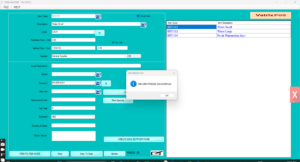
Check it worked
Open Transaction → POS Invoice and scan or type the
item’s barcode. It should not be found. The item still appears in
Reports → Item Wise Sales Report for past dates.
Common problems
- Item still appears on the POS button screen → refresh the buttons in
ITEM BUTTON MANAGER or restart Vatrix. - Cannot delete → the item has history. Freeze it instead.
- Frozen by mistake and now barcode says not found → unfreeze the item
as in step 5.
Video
FAQ
Can I freeze many old items at once? Yes.
Admin → Maintanance has Freeze Aged Item Code, which
freezes items with no movement for a set period.
Does freezing remove stock? No. Adjust the stock out
with Inventory → Stock Adjustment before freezing.
Will a frozen item’s barcode be reusable?
No. Barcodes stay linked to the frozen item; create a new code with a
new barcode.
Need help?
WhatsApp +971 50 428 2953 · sales@vatrixerp.com · 9:30 am–9:30
pm.