

Every Vatrix login has its own password. Change it when a new PC is
installed (the default is admin / admin), when a cashier leaves, or
whenever a password may have been seen. Any user can change their own
password; an admin can reset anyone’s. Available in all editions: ERP,
Laundry, Restaurant, Retail, Retail 2nd Edition, Salon and Weigh
Scale.
Before you start
- Know the current password for the account you are changing.
- For resetting someone else’s password, log in as an Admin user.
Steps
Change your own password
- Open Admin → Password Change. The ChangePassword
screen opens with your User ID and User
Name filled.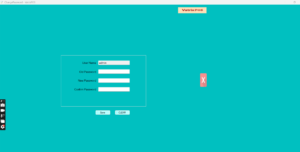
- Type your Old Password.
- Type the New Password, then repeat it in
Confirm Password. - Click Save. Vatrix confirms the change. Click
CLEAR to close. - Log out and log in with the new password.
Reset another user’s
password (admin)
- Open Admin → User Management.
- Select the user in the list and click EDIT.
- Type the new Password and click
Update.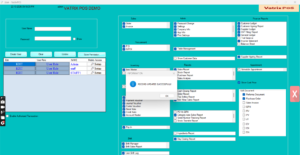
- Tell the user to change it to their own password after first
login.
Check it worked
Close Vatrix, open it and log in with the new password. If Remember
Me was ticked on the login screen, untick it and re-enter.
Common problems
- “Old password incorrect” → Caps Lock is on, or you typed the admin
password instead of the user’s. Try again. - New password not accepted → the two entries do not match. Retype
Confirm Password. - Forgot the admin password → use Forgot Password on
the login screen, or contact support with your Product ID.
Video
FAQ
Is there a minimum password length? Vatrix accepts
short passwords, but use at least 6 characters with a number.
Does changing the password log out the POS? No. The
change applies at the next login.
Can I set a separate password for deleting invoices?
Deletion asks for the user’s password when Edit Document is allowed;
there is no separate delete password.
Need help?
WhatsApp +971 50 428 2953 · sales@vatrixerp.com · 9:30 am–9:30
pm.