

The Sales Analysis report breaks sales down by customer and item, so
you can answer questions like “what did this customer buy last month” or
“who buys this product”. It is the report to use for customer follow-up
and B2B sales reviews. Available in all editions: ERP, Laundry,
Restaurant, Retail, Retail 2nd Edition, Salon and Weigh Scale.
Before you start
- Your user needs the Reports permission.
- Sales to named customers give the most useful output; walk-in sales
are grouped under the cash customer.
Steps
- Open Reports → Sales Analysis. The SALES ANALYSIS
REPORT screen opens.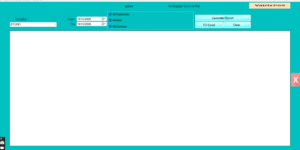
- Set From and To dates.
- Choose one Customer or leave All
Customer. - Choose one Item or leave All
Item. - All Contact groups by the customer’s contact
number; pick a number to see sales captured by phone at the POS (Capture
Contact setting). - Select the Location or leave all.
- Click Generate Report. The grid shows the matching
sales lines with customer, item, quantity and value.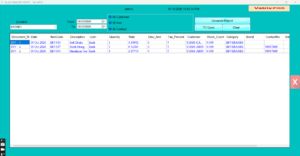
- Click TO Excel to save, or Clear
for a new query.
Check it worked
Run Reports → Sales Report for the same dates and
customer. The customer’s total there should equal the sum of the
analysis lines.
Common problems
- Everything is under one customer → cashiers did not select a
customer at billing. Train them to use Cus. Details, or enable Capture
Contact. - Item filter shows nothing → the item was sold under a different code
or barcode; try All Item and search the grid. - Report slow on long periods → run month by month or filter by
location.
Video
FAQ
How is this different from the Sales Report? The
Sales Report lists invoices; Sales Analysis lists what was inside them,
per customer and item.
Can I see it by cashier shift? Use Reports →
Shift Analysis Report.
Can salesmen see only their own customers? Assign a
Salesman on each customer and filter the Sales Report by Sales Man.
Need help?
WhatsApp +971 50 428 2953 · sales@vatrixerp.com · 9:30 am–9:30
pm.