

The Sales Report lists every invoice and sales return between two
dates with its net value, and totals sales and returns for the period.
Use it for daily checks, month-end totals and to compare salesmen or
cashiers. Available in all editions: ERP, Laundry, Restaurant, Retail,
Retail 2nd Edition, Salon and Weigh Scale.
Before you start
- Your user needs the Reports permission (set in Admin → User
Management). - Invoices must be saved and approved; held invoices are not
counted.
Steps
- Open Reports → Sales Report. The SALES REPORT
screen opens with today’s date in From and
To.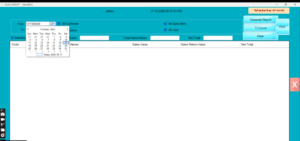
- Set the From and To dates for the
period you want. - Leave the filters at All Customer, All
Sales Man, All User and All
Location, or pick one value to narrow the report (for example
one cashier under User). - Tick Including TAX if you want values with VAT;
leave it clear for net-of-VAT figures. - Click Generate Report. The grid fills with one row
per document: Code, Customer Name, Date, Sales Value, Sales Return Value
and Net Total.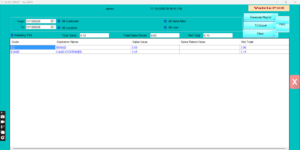
- Read the totals at the bottom: Total Sales,
Total Sales Return and the net. - Click TO Excel to save the report, or
Print for a paper copy. - Click Clear to reset the filters and run another
period.
Check it worked
The Total Sales for one day should match the Day Closing Report for
the same date (Reports → Day Closing Report).
Common problems
- Report is empty → the date range is wrong, or the user filter is set
to a cashier with no sales that day. Click Clear and try again. - Totals differ from the cash counted → sales returns and credit
invoices are included. Use the Settlement Report for cash, card and
credit split. - Cannot open the report → Reports permission is off for your
user.
Video
FAQ
Can I see item-level details? Use Reports →
Item Wise Sales Report for quantities per item.
Can I see the report on my phone? Yes, with Mobile
Access enabled in Admin → Mobile Access Settings.
Does it include all branches? Yes when Location is
set to All Location; choose one location to see a single store.
Need help?
WhatsApp +971 50 428 2953 · sales@vatrixerp.com · 9:30 am–9:30
pm.