

The Top Selling Report ranks items by the quantity and value sold in
a period, so you know what to reorder, what to promote and which
supplier’s goods move fastest. Available in ERP, Restaurant, Retail,
Retail 2nd Edition and Weigh Scale editions.
Before you start
- Your user needs the Reports permission.
- To see cost beside sales, tick Cost Price in Top Selling
Report in Admin → Settings and click
Apply (admin only).
Steps
- Open Reports → Top Selling Report. The TOP SELLING
REPORT screen opens.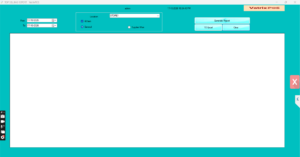
- Set From and To dates, for example
the last 30 days. - Choose the view: General ranks every item;
Supplier Wise groups the ranking by the supplier set on
each item. - Keep All Customer and All Item, or
select one customer to see what they buy most, or one item to see its
sales alone. - Choose the Location or keep all.
- Click Generate Report. The grid lists items with
the quantity and sales value sold, highest first.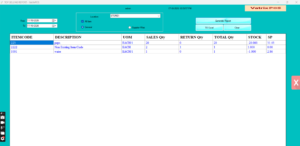
- Click TO Excel to save the ranking, or
Clear to run another period.
Check it worked
Pick the first item in the list and run Reports → Item Wise
Sales Report for the same dates and item. The quantity should
match.
Common problems
- Supplier Wise shows everything under one supplier → items have no
Supplier set in Item Master. Update the items. - Cost column blank → the setting Cost Price in Top Selling Report is
off, or the user lacks Show Cost Price permission. - Weighed items show odd quantities → the report totals kilograms for
scale items; that is expected.
Video
FAQ
Can I see the slowest sellers? Sort the Excel export
ascending; items with no sales in the period are not listed, so compare
with the Stock Report.
Does it include sales returns? Returned quantities
reduce the item’s total.
Can I run it per category? Use Reports →
Category Wise Sales Report for category totals.
Need help?
WhatsApp +971 50 428 2953 · sales@vatrixerp.com · 9:30 am–9:30
pm.