

One-line answer: Combine POS Item Code merges
repeated entries of the same item on a POS invoice into a single line
with the total quantity, instead of listing the item once for every
scan. It is a setting in the Restaurant, Retail, Retail 2nd Edition and
Weigh Scale editions and keeps receipts short when customers buy several
of the same product.
Before you start
- Log in as admin or a user with Admin →
Settings access. - Close any open POS Invoice screens; the change applies to new
invoices. - Decide if you want combining. Shops that scan serial items or
weighed items usually keep it off, because each unit needs its own
line.
Steps
- Open Admin → Settings. The Settings screen
opens. - Go to the POS Settings section and find
Combine POS Item Code.

- Tick Combine POS Item Code to turn it on.
- Click Apply. Close and reopen Vatrix so POS Invoice
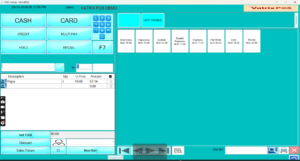
loads the new setting. - Open Transaction → POS Invoice and scan the same
item three times.
Check it worked
The invoice shows one line for the item with quantity 3, and the
total equals three times the price. With the setting off, the same scans
give three separate lines.
Common problems
- Items still appear on separate lines → the setting
was applied but Vatrix was not restarted, or the two scans were
different barcodes linked to the same item. Restart and scan the same
barcode. - Weighed items combine when they should not → each
weighed label carries its own weight and price. Turn the setting off for
weigh-scale counters. - Serial-numbered items merge → serial items need one
line per unit. Turn the setting off or sell serial items on their own
invoice.
Video
FAQ
Does this change the invoice total? No. Only the
number of lines changes. Price, VAT and total stay the same.
Can I still change the quantity on the combined
line? Yes. Click the Qty on the line and type
the new number before you settle the invoice.
Does it work in Restaurant orders too? Yes. Repeated
menu items merge into one line on the order and the KOT when the setting
is on.
Need help?
WhatsApp +971 50 428 2953 · sales@vatrixerp.com · 9:30 am–9:30 pm