

One-line answer: Automatic button creation builds a
touch button for every item in your Item Master in one click, grouped by
category, so a button-based POS screen (Restaurant, Retail 2nd Edition,
Salon, Laundry) is ready without manual work. It is also available in
Retail, Weigh Scale and ERP editions when the button invoice form is
used.
Before you start
- Items must already exist in Master → Item Master
with a Category and, ideally, a short Button
Name. - In Admin → Settings → POS Settings, set POS
Inv Form Option to the button (touch) invoice form. - Log in as admin.
Steps
- Open Master → Item Master.
- Click ITEM BUTTON MANAGER. The Quick Access Item
screen opens showing Item Quick Access Buttons and
Category Management.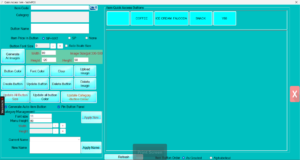
- Click Generate Auto Item Button. Vatrix creates one
button per item and one category tab per category.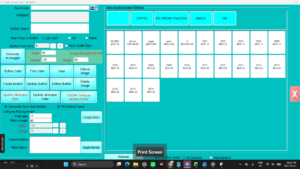
- Choose the Item Button Order: As
Created or Alphabetical
(Ascending / Descending). - Set Button Size (Width,
Height) or tick Auto Scale Size, then
click Apply Size or Update All Button
Size. - Choose whether to show the price on buttons with Item Price
In Button (SP or SP+VAT, or
None). - Click Refresh and close the screen.
- Open Transaction → POS Invoice. The buttons appear
by category.![POS Invoice with generated buttons]](http://vatrixpos.com/wp-content/uploads/2026/09/gr3-300x169.png)
Check it worked
Every item with a category has a button. Tap one and it adds the item
to the invoice with its price.
Common problems
- Some items have no button → They have no Category
in Item Master. Add a category and run Generate Auto Item Button
again. - Button text is too long → Set a short
Button Name in Item Master, or reduce Button
Font Size in the Button Manager. - New items do not get buttons → Run Generate
Auto Item Button again after adding items; only new items are
added.
Video
FAQ
Will it delete buttons I made by hand? No. It adds
missing buttons. Use Delete Button to remove one you do
not want.
Can I change colours by category? Yes. Use
Update Category-Button Colour in Category
Management.
Can I add pictures to the buttons? Yes. Use
Upload Image or Generate AI Images on
the same screen.
Need help?
WhatsApp +971 50 428 2953 · sales@vatrixerp.com · 9:30 am–9:30 pm