

One-line answer: The Stock Report shows how many
units of each item you hold, what they cost and what they are worth, at
one location or all of them. It is available in the Retail, Retail 2nd
Edition, Weigh Scale, Restaurant, Laundry and ERP editions.
Before you start
- Inventory Control must be on in Admin →
Settings so Vatrix tracks quantities. - Approve any pending GRNs, stock adjustments or transfers so the
figures are current.
Steps
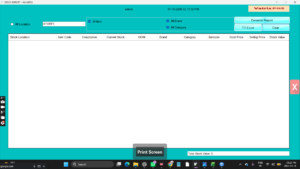
- Open Reports → Stock Report. The STOCK REPORT
screen opens with the All Location, All
Category, All Brand and All
Item filters, an Include ProductExpiry Date
option, and the Generate Report, TO
Excel and Clear buttons. - Leave all filters ticked for the full stock list, or untick one and
choose a Stock Location, Category,
Brand or single Item Code.
- Tick Include ProductExpiry Date if you track expiry
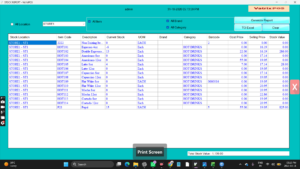
and want the Expiry Date column. - Click Generate Report. The grid lists Item
Code, Barcode, Description,
UOM, Current Stock, Cost
Price, Selling Price and Stock
Value for each item, with the Stock Location.
- Click TO Excel to save the list for a stock count
or for your accountant.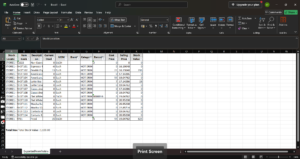
- Click Clear to start a new filter.
Check it worked
Pick one fast-moving item and count it on the shelf. The count should
match Current Stock for that location.
Common problems
- Current Stock shows zero for everything → Inventory
Control is off, or stock was never entered. Turn it on and add opening
stock with Inventory → Stock Adjustment. - Negative stock → items were sold before stock was
received. Approve the pending GRN, or correct with a stock
adjustment. - Stock Value looks wrong → the item has no
Cost in Item Master. Update the cost price or the next
GRN will set it.
Video
FAQ
Can I see stock for one branch only? Yes. Untick
All Location and choose the Stock
Location.
Can I hide items with zero stock? Export to Excel
and filter the Current Stock column, or tick
Show Report With Negative Value off in Admin →
Settings to control negative lines.
How do I see stock movements, not just balances? Use
Reports → Stock Adjustment Report and Reports →
Stock Transfer Report.
Need help?
WhatsApp +971 50 428 2953 · sales@vatrixerp.com · 9:30 am–9:30 pm