

One-line answer: A Stock Transfer In confirms that
goods sent by another location have arrived and adds them to your
location’s stock. It always follows a Stock Transfer Out. Used in ERP,
Retail, Retail 2nd Edition, Laundry and Weigh Scale editions with more
than one location.
Before you start
- The sending branch must have approved its Stock Transfer
Out. - Your user needs Inventory permission and access to
the receiving location. - Count the received goods against the printed transfer note.
Steps
- Open Inventory → Stock Transfer → Stock Transfer
In. The Stock Transfer screen opens with a new DOC
NO.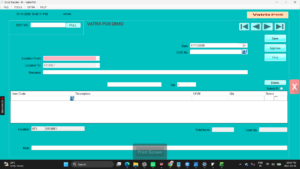
- Select Location To as your location and
Location From as the sending branch. - Click PULL. A list of pending transfer-out
documents appears with their Pulled DocDate.
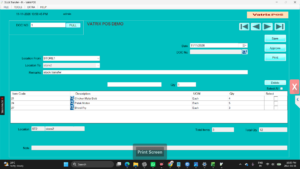
- Tick the transfer you received (or Select All) and
confirm. The items and quantities load into the grid. - Compare each Qty with the physical count. If a
quantity is short, reduce the Qty on that line and write the reason in
Remarks. - Click Save, then Approve. Stock is
added to your location.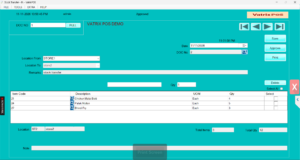
- Click Print if you need a receiving note for your
records.
Check it worked
Reports → Stock Report for your location now
includes the received quantities. In Reports → Stock Transfer
Report the document no longer shows under Pending
Transfer.
Common problems
- PULL shows nothing → The sending branch has saved
but not approved its transfer out, or Location From is wrong. - Quantities differ from the note → Receive what
arrived, note the difference in Remarks, and ask the sender to adjust
with a Stock Adjustment. - Items pulled twice → Only tick each pending
document once. If duplicated, delete the unapproved draft with
Delete.
Video
FAQ
Can I do a Stock Transfer In without a Transfer Out?
No. Transfer In only pulls approved Transfer Out documents. For new
stock use Procurement → Goods Reciept Note or a Stock
Adjustment.
Can two branches on different computers do this?
Yes, when they share one database over SQL Server or Vatrix Cloud.
What if the transfer was pulled at the wrong
location? Do not approve it. Delete the draft and pull it again
from the correct location.
Need help?
WhatsApp +971 50 428 2953 · sales@vatrixerp.com · 9:30 am–9:30 pm