

One-line answer: Stock level notification warns you
when an item’s quantity drops to the level you set, so you can raise a
purchase order before the shelf is empty. It is available in the Retail,
Retail 2nd Edition, Weigh Scale, Restaurant and Laundry editions.
Before you start
- Inventory Control must be on in Admin →
Settings, otherwise Vatrix does not know the stock. - Log in as admin or a user with Admin →
Settings access. - Decide the reorder level, for example 5 units, that suits most of
your items.
Steps
- Open Admin → Settings. The Settings screen
opens. - Find the inventory options and tick Stock level
notification.
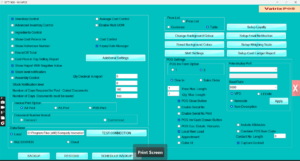
- In Stock Notification level, type the quantity at
which Vatrix should warn you, for example 5. - Click Apply, then close and reopen Vatrix.
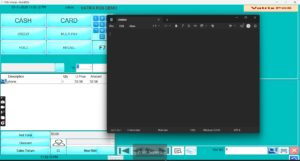
- Sell or adjust an item until its stock reaches the level. Vatrix
shows a low-stock notification for that item.
- Use Reports → Stock Report to list items at or
below the level and raise a Procurement → Purchase
Order for them.
Check it worked
An item whose Current Stock equals or is below the
notification level triggers the warning, and items with more stock do
not.
Common problems
- No notification appears → Inventory Control is off,
or the setting was not applied before restarting. Check both and restart
Vatrix. - Too many warnings → the level is set too high for
slow items. Lower Stock Notification level. - Warning for items you no longer sell → freeze those
items in Master → Item Master so they drop out of stock
checks.
Video
FAQ
Can I set a different level for each item? The
setting in Admin → Settings applies one level to all
items. Use the Stock Report with Excel export to manage item-specific
reorder points.
Does the notification go to my phone? No. It shows
in Vatrix on the PC. For a phone view of stock, use Admin →
Mobile Access Settings.
Does it work with expiry tracking? Yes. Stock level
notification and Expiry Date Manager can both be on at
the same time.
Need help?
WhatsApp +971 50 428 2953 · sales@vatrixerp.com · 9:30 am–9:30 pm