

One-line answer: A Purchase Order (LPO) tells a
supplier what you want to buy, at what price, before the goods arrive.
It does not change stock; when the goods come, you pull the order into a
GRN. Available in the Retail, Retail 2nd Edition, Weigh Scale and ERP
editions.
Before you start
- The supplier must already be listed in Master → Supplier
Master. If not, see How to Create Supplier Name or Code in
Vatrix POS or use Create Suplier Code on the order
screen. - The items must exist in Master → Item Master.
- Know the agreed prices and the delivery location.
Steps
- Open Procurement → Purchase Order. The PURCHASE
ORDER screen opens with a new Po No, today’s
Doc Date and your Location. - Type or select the Supplier Code. Supplier
Name, Supplier TRN, Sup
Address and Payment Term fill in from Supplier
Master.
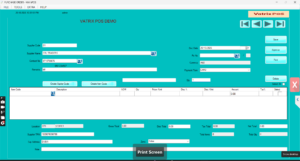
- Check DELIVERY ADDRESS and change it if the goods
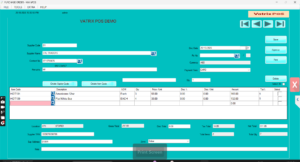
should go to another branch. - In the grid, type or scan the Item Code, then enter
Qty and Price /Unit. Add Disc
% or Disc /Unit if agreed.
Tax% and Amount calculate
automatically. Press Enter for the next line.
- Type any delivery instructions in Remarks.
- Check Total Items, Total Qty,
Gross Total, Tax Total and Net
Total. - Click Save, then Approve. The
order is locked and ready to send.
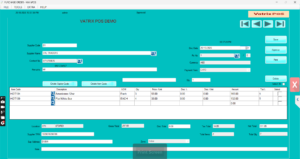
- Click Print or PRINT PREVIEW to
print or save the LPO and send it to the supplier.
Check it worked
The order appears under SAVED DOC with
Approved status. When goods arrive, open
Procurement → Goods Reciept Note, enter the PO
NO and click PULL to load the lines.
Common problems
- Supplier Code not found → the supplier is frozen or
not created. Check Master → Supplier Master and
unfreeze or create it. - Cannot edit after approval → approved documents are
locked. Use EDIT DOC only on saved, unapproved orders,
or raise a new order. - Prices missing → the item has no Purchase
Price / Unit in Item Master. Type the price on the line or
update Item Master first.
Video
FAQ
Does a Purchase Order change my stock? No. Stock
changes only when the GRN is approved.
Can I add many items at once? Yes. Use Bulk
Itemcode From Excel on the order screen to load a list of item
codes and quantities.
How do I see orders that are not yet received? Open
Reports → LPO Doc Vs GRN Report.
Need help?
WhatsApp +971 50 428 2953 · sales@vatrixerp.com · 9:30 am–9:30 pm