

One-line answer: The cash drawer button adds an
“open drawer” control on the POS Invoice screen so the cashier can open
the drawer for change or a refund without printing. It is available in
Restaurant, Retail, Retail 2nd Edition, Salon, Laundry and Weigh Scale
editions.
Before you start
- The cash drawer must be plugged into the RJ11 port of the thermal
printer, and the printer must be set in Admin → Print
Settings. - Log in as admin.
- Decide who should use it. You can also control drawer access by user
role.
Steps
- Open Admin → Settings. The SETTINGS screen
opens. - Click the POS Settings tab.
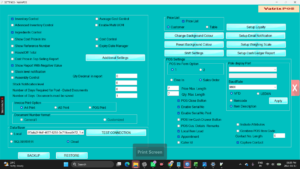
- Tick POS Inv Cash Drawer Button.
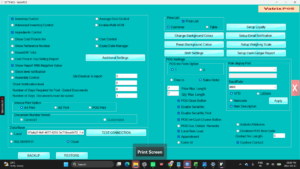
- Click Apply.
- Close and reopen Vatrix.
- Open Transaction → POS Invoice. A cash drawer
button now appears on the invoice screen.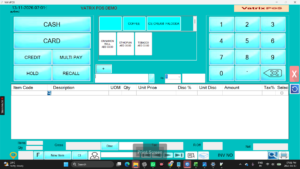
- Click it. The drawer opens through the printer’s kick-out port.
Check it worked
The drawer opens without a receipt printing. If you also use shifts,
the open is logged for the shift user.
Common problems
- Button shows but drawer does not open → The drawer
cable is loose or the printer is not the default POS printer. Reconnect
and check Admin → Print Settings. - Drawer opens only when printing → The button is not
ticked or Vatrix was not restarted after Apply. - Cashiers open the drawer too often → Keep the
button off for cashier roles and use Finance → Pay Out
for recorded cash removals.
Video
FAQ
Does the drawer open on card sales? By default the
drawer opens on cash settlement. Use the button for card sales when
needed.
Can I use a USB cash drawer? Vatrix triggers the
drawer through the receipt printer. A drawer with an RJ11 cable to the
printer is the standard setup.
Is there a shortcut key? Check Admin → Short
Key’s for the current list of keyboard shortcuts on your
version.
Need help?
WhatsApp +971 50 428 2953 · sales@vatrixerp.com · 9:30 am–9:30 pm