

One-line answer: Your logo is uploaded once in
Company Info and then prints at the top of the POS invoice on the
thermal receipt printer. This works in the Restaurant, Retail, Retail
2nd Edition, Salon, Laundry and Weigh Scale editions.
Before you start
- Log in as admin or a user with
Admin access. - Have your logo as a PNG or JPG file, around 500 pixels wide, in
black or dark colours. Thermal printers print in black only. - The receipt printer should be connected so you can print a
test.
Steps
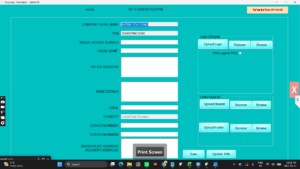
- Open Admin → Company Info. The Company Information
screen opens with your company name, address and the logo area.
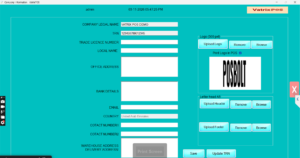
- Click Upload Logo (marked Logo (500
pxll)), then Browse to your logo file and open
it. The logo appears in the preview box. - Tick Print Logo in POS so the logo prints on the
POS receipt.
- Click Save.
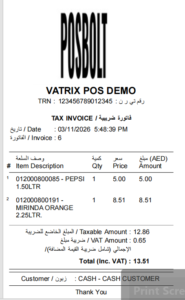
- Open Transaction → POS Invoice, make a small test
sale and print the receipt.
Check it worked
The receipt shows the logo above the company name. If it prints too
light, use a darker version of the logo file.
Common problems
- Logo does not print → Print Logo in
POS is not ticked, or Vatrix was not restarted after saving.
Tick it, click Save and reopen Vatrix. - Logo is huge or cut off → the image is too wide.
Resize it to about 500 pixels wide and upload again. - Logo prints as a grey block → the file has a
coloured or transparent background. Use a black logo on a white
background.
Video
FAQ
How do I remove or change the logo? Open
Admin → Company Info, click Remove,
then Upload Logo with the new file and
Save.
Does the same logo print on A4 invoices? Yes. A4 and
A5 formats use the Company Info logo, and you can add a full letterhead
with Upload Header for A4.
Can I print a logo on the KOT? No. The KOT prints
only the order details for the kitchen.
Need help?
WhatsApp +971 50 428 2953 · sales@vatrixerp.com · 9:30 am–9:30 pm