

One-line answer: The default location is the branch
or store that Vatrix selects automatically on every new invoice,
purchase and stock document. Set it once per computer or user so
cashiers never pick the wrong branch. This works in all editions:
Restaurant, Retail, Retail 2nd Edition, Salon, Laundry, Weigh Scale and
ERP.
Before you start
- Log in as admin.
- The location must already exist in Master → Location
Master. - If you run several branches on one database, know which user works
at which branch.
Steps
- Open Master → Location Master. The LOCATION MASTER
screen lists your locations with Location Code,
Location Description and Address. - Click the location you want as default. Its details load in the
form.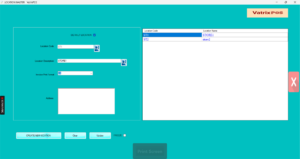
- Tick DEFAULT LOCATION.
- Click Update. A confirmation message appears.

- For a user-wise default (different branch per login), open
Master → Multi Location Management. - Under Default Location for Users choose the
User Name and the Location Code, then
click Update.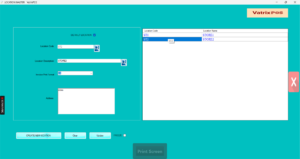
- Log out and log in again.
Check it worked
Open Transaction → POS Invoice or
Transaction → Sales Invoice. The
Location box should already show the default
location.
Common problems
- Invoice still shows the old location → Log out and
log in; the default loads at login. - Two locations ticked as default → Only one can be
default. Untick the other and click Update. - User sees a different branch → A user-wise default
in Multi Location Management overrides the Location Master default.
Check both.
Video
FAQ
Can a cashier change the location on an invoice?
Yes, if the location box is enabled for their role. Most shops keep it
locked to avoid stock mistakes.
Does the default location affect stock reports?
No. Reports have their own location filter. The default only pre-fills
documents.
I have one shop only. Do I need this? Vatrix already
uses your first location. You only need this when you add a second
location.
Need help?
WhatsApp +971 50 428 2953 · sales@vatrixerp.com · 9:30 am–9:30 pm