One-line answer: Removing a Quick Access shortcut
takes the button off the dashboard without affecting the menu item
itself or any data. Use it in any edition when a cashier’s dashboard has
buttons they do not need.
Before you start
- Log in as the user whose dashboard shows the shortcut. Quick Access
buttons belong to the login. - Note which menu the shortcut came from, for example Reports
→ Sales Report.
Steps
- Log in. The dashboard shows the Quick Access area
with the shortcut buttons. - Open the top menu that holds the same screen, for example
Reports. - Right-click the menu item that matches the shortcut. The small menu
now shows Remove from Quick Access instead of Add.
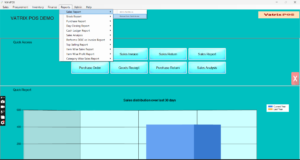
- Click Remove from Quick Access. The button
disappears from the dashboard.
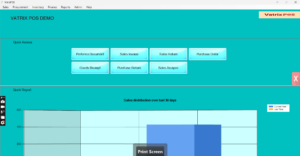
- Repeat for any other shortcut you want to clear.
Check it worked
Close and reopen Vatrix. The removed button is not on the dashboard,
and the screen still opens from the top menu.
Common problems
- Menu shows Add instead of Remove → you
right-clicked a different item from the one on the dashboard. Find the
exact menu item that the shortcut opens. - Button still shows for another user → shortcuts are
per login. Log in as that user and remove it. - Removed by mistake → right-click the item again and
choose Add to Quick Access.
Video
FAQ
Does removing a shortcut delete anything? No. It
only removes the dashboard button. Reports, invoices and settings stay
as they are.
Can I stop a cashier from opening a screen by removing its
shortcut? No. Remove the permission in Admin → User
Management instead; the shortcut only saves clicks.
Can I rearrange the shortcut buttons? Remove and
re-add them in the order you want; new buttons are added after the
existing ones.
Need help?
WhatsApp +971 50 428 2953 · sales@vatrixerp.com · 9:30 am–9:30 pm