

One-line answer: Freezing a customer stops staff
from making new invoices for that customer while keeping all old
invoices, ledger and balance intact. Use it for customers who have not
paid, closed businesses or duplicate codes. Available in every edition
(Restaurant, Retail, Retail 2nd Edition, Salon, Laundry, Weigh Scale and
ERP).
Before you start
- Log in as admin or a user with Customer Master access.
- Know the customer code or name.
- Do not use freeze for the Default Customer (cash
customer) – POS invoices need it.
Steps
- Open Master → Customer Master. The Customer screen
shows the customer list under CUSTOMER DATA. - Click the customer in the list, or type the code in Customer
Code. The details load: Customer Name,
Contact Number, TRN, Credit
Amount.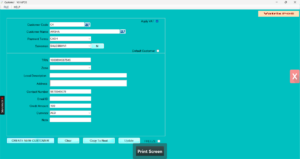
- Click FREEZE. Vatrix asks you to confirm.
- Click Yes. The customer is now marked as frozen.
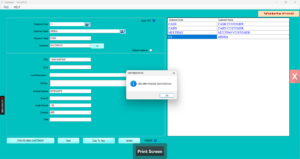
- To unfreeze later, load the same customer and click
FREEZE again. The status switches back to active.
Check it worked
Open Transaction → Sales Invoice and try to select
the frozen customer. Vatrix shows a Freezed status and
does not allow a new invoice. 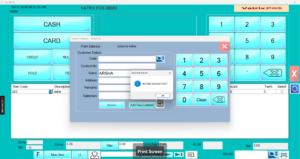
Common problems
- FREEZE button is grey → Your user role has no
permission for Customer Master. Ask the admin to log in. - Customer still appears in POS → POS Invoice uses
the default cash customer. Freezing only blocks the named customer on
credit and sales invoices. - Need to remove the customer completely → Vatrix
does not delete customers with transactions. Keep them frozen so reports
stay correct.
Video
FAQ
Does freezing clear the outstanding balance? No. The
balance stays in Reports → Customer Ledger and you can
still receive payment through Finance → Receipt
Voucher.
Can I freeze a supplier the same way? Yes.
Master → Supplier Master has the same FREEZE
button.
Can I freeze many customers at once? No. Freeze is
one customer at a time.
Need help?
WhatsApp +971 50 428 2953 · sales@vatrixerp.com · 9:30 am–9:30 pm