

One-line answer: The Purchase Report lists what you
bought over a date range, line by line from approved GRNs, so you can
check supplier prices, quantities and input VAT. It is available in all
editions: Restaurant, Retail, Retail 2nd Edition, Salon, Laundry, Weigh
Scale and ERP.
Before you start
- Your user role must include Reports.
- Purchases must be recorded as approved GRNs under
Procurement → Goods Reciept Note. Stock adjustments do
not appear here.
Steps
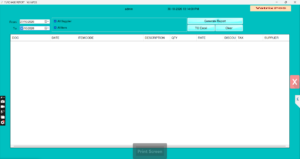
- Open Reports → Purchase Report. The PURCHASE REPORT
screen opens with From and To dates,
the All Supplier, All Item and
All Location filters, and the Generate
Report, TO Excel and Clear
buttons. - Enter the date range in From and
To.
- To see one supplier only, untick All Supplier and
choose the supplier. Do the same with All Item for a
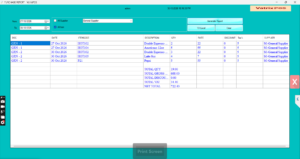
single item, or All Location for one branch. - Click Generate Report. The grid shows one row per
GRN line with DOC, DATE,
SUPPLIER, ITEMCODE,
DESCRIPTION, QTY,
RATE, DISCOUNT and
TAX.
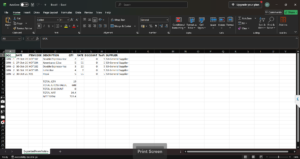
- Click TO Excel to export the rows. Choose a folder
and file name when Windows asks.
- Click Clear to run another range or filter.
Check it worked
Pick one GRN from the grid and open it under Procurement →
Goods Reciept Note → SAVED DOC. The quantity, rate and tax
should match the report row.
Common problems
- Report is empty → no GRN is approved in that range,
or the filter points to a supplier with no purchases. Tick All
Supplier and widen the dates. - Recent purchase missing → the GRN is saved but not
approved. Approve it and generate again. - TAX column shows zero → the supplier has
Apply VAT unticked in Supplier Master, or the line
Tax% was zero. Correct the supplier record for future
GRNs.
Video
FAQ
Can I see purchase totals per supplier instead of per
line? Filter by one supplier and export to Excel, or use
Reports → Supplier Ledger for the balance view.
Do purchase returns show here? No. Returns are
recorded in Procurement → Purchase Return and appear in
the Supplier Ledger.
Where do I get input VAT for the FTA return? Use
Reports → VAT Filling Report. The Purchase Report helps
you check the detail behind it.
Need help?
WhatsApp +971 50 428 2953 · sales@vatrixerp.com · 9:30 am–9:30 pm