

One-line answer: Shift management makes each cashier
open a shift before billing and close it with a cash settlement, so you
know exactly who collected what. Set it up once in Shift Settings; it
works in Restaurant, Retail, Retail 2nd Edition, Salon, Laundry and
Weigh Scale editions.
Before you start
- Create one login per cashier in Admin → User
Management and tick Shift permission for
them. - Log in as admin.
- Decide your shift names (Morning, Evening) or counter names (Counter
1, Counter 2).
Steps
- Open Shift → Shift Settings (also reachable from
Admin → Settings → Shift Settings). The Shift / Counter
Management screen opens.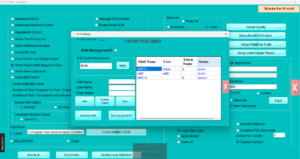
- Type a Shift Name, for example
Morning. - Type a Token Name (the short label printed on
receipts and reports). - Select the User Name of the cashier for this shift
and click Add. Repeat for every shift or counter.
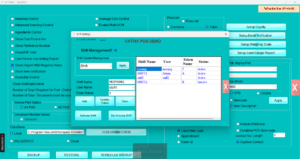
- Click Activate Shift. Shift tracking is now on for
the whole database. - Click Apply and close the screen.
- Log in as a cashier and open Shift → Shift Manager.
The Shift screen shows Shift, User,
Name and Date. Click to open the
shift.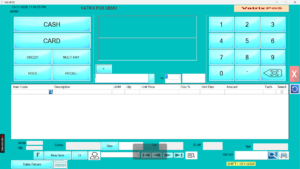
- At the end of the shift, open Shift → Shift Manager
again, enter the cash counted under Settlement and
close the shift.
Check it worked
Shift → Shift History lists the opened and closed
shift with the user and time. Reports → Shift Sales
Report shows sales for that shift only.
Common problems
- Cashier cannot bill → No open shift. Shift must be
opened in Shift Manager before POS Invoice is used. - Shift name missing for a user → The user was not
added in Shift Settings. Add the user and click Apply. - Need to turn shifts off temporarily → Click
De Activate Shift in Shift Settings, then Apply.
Video
FAQ
Can two cashiers share one shift? Give each cashier
their own shift so settlement matches the person. Shared shifts make
cash differences hard to trace.
Does closing a shift close the day? No. Day closing
is a separate step in Reports → Day Closing Report.
Can I rename a shift later? Yes. Select it in Shift
Settings, change the name and click Update Token, then
Apply.
Need help?
WhatsApp +971 50 428 2953 · sales@vatrixerp.com · 9:30 am–9:30 pm