

One-line answer: A manual backup saves a full copy
of your Vatrix database – items, customers, invoices, stock and settings
– to a folder you choose, right now. Take one before a software update,
before restoring, before moving to a new PC, and whenever you want extra
safety. Same steps in every edition.
Before you start
- Log in as admin or a user with Admin →
Settings access. - Have a folder ready on a second drive, USB drive or Google Drive
desktop folder. A typical backup is around 1 GB, so check free
space. - Ask other counters to finish their current invoice; the backup is a
snapshot of that moment.
Steps
- Open Admin → Settings. The Settings screen opens
with the BACKUP, RESTORE and
SCHEDULE BACKUP buttons in the Data
Base section.
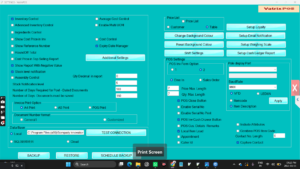
- Click BACKUP. A folder window opens.
- Choose the backup folder and confirm. Vatrix writes the backup file
and shows a message when it is complete.
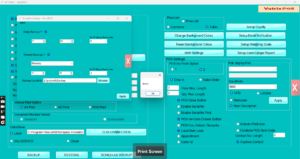
- Open the folder in Windows and check the file is there with today’s
date and time.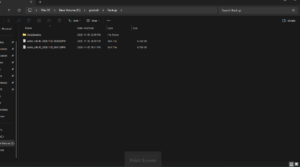
- Copy the file to a second place – a USB drive, Google Drive or
another PC – so a single disk failure cannot take both copies.
Check it worked
The backup file exists, has today’s date and is not zero bytes. If
you want to be sure, restore it on a test PC using How to restore
backup in Vatrix POS and ERP.
Common problems
- BACKUP button greyed out → the user role does not
include Settings. Log in as admin. - Backup fails on a network drive → save to a local
folder first, then copy the file to the network or cloud folder. - File is very small → the database connection points
to a different or empty database. Check Admin → DB
Manager and back up from the main PC.
Video
FAQ
How often should I back up? Set a daily scheduled
backup and take a manual one before any change to the PC or
software.
Can I back up from a counter PC in a multi-counter
setup? Take the backup on the main PC that holds the SQL Server
database, so it includes all counters’ data.
Does the backup include my logo and print settings?
The database backup includes your data and most settings. Keep a copy of
your logo file and re-check printer settings after a restore on a new
PC.
Need help?
WhatsApp +971 50 428 2953 · sales@vatrixerp.com · 9:30 am–9:30 pm