

One-line answer: A bulk stock transfer out sends a
long list of items from one location (for example the warehouse) to
another (a shop) by pasting the list from Excel instead of scanning each
item. Use it in ERP, Retail, Retail 2nd Edition, Restaurant, Laundry and
Weigh Scale editions when you have more than one location.
Before you start
- Both locations must exist in Master → Location
Master. - The items must exist in Master → Item Master and
have stock in the sending location. - Prepare an Excel sheet with item code (or barcode) in one column and
quantity in the next, no headings.
Steps
- Open Inventory → Stock Transfer → Stock Transfer
Out. The Stock Transfer screen opens with a new DOC
NO and today’s Date. - Select Location From (sending) and Location
To (receiving).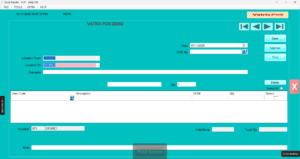
- In Excel, select the code and quantity cells and press Ctrl+C.
- Click TOOLS and choose Bulk Itemcode From
Excel (or Bulk Barcode From Excel if your
sheet has barcodes).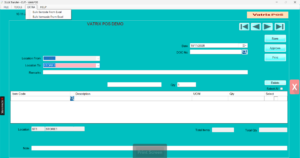
- The grid fills with Item Code,
Description, UOM and
Qty for each row. Check Total Items
and Total Qty. - Type a Remarks note if needed, for example the
delivery vehicle or driver. - Click Save, then Approve. Stock
leaves the sending location and the transfer waits as pending for the
receiving location.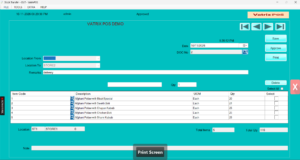
- Click Print or PRINT PRIVIEW for a
delivery list to send with the goods.
Check it worked
Open Reports → Stock Transfer Report, choose
Stock Transfer Out and the date. Your document appears
with Pending Transfer until the receiving branch does
the Stock Transfer In.
Common problems
- Some codes did not load → They are not in Item
Master or are frozen. Add them and paste again. - Approve is blocked by negative stock →
Inventory Control is on and the sending location has
less stock than the quantity. Correct the quantity or do a Stock
Adjustment first. - Wrong location chosen → Delete the unapproved
document with Delete and start again. Approved
transfers must be reversed with a transfer back.
Video
FAQ
Can I include serial numbers in a bulk transfer?
Serial-tracked items need the SERIAL NO entered per
line after the paste.
Does the receiving branch see it automatically? Yes,
if both branches share one database. They pull it in Stock Transfer
In.
Can I edit a saved but unapproved transfer? Yes.
Open it from SAVED DOC, change lines, then Save and
Approve.
Need help?
WhatsApp +971 50 428 2953 · sales@vatrixerp.com · 9:30 am–9:30 pm