

One-line answer: Include Attributes adds an
Attribute field to every item so you can track variants
such as size, colour, model or flavour under one item code. Use it in
Retail, Retail 2nd Edition, Salon, Laundry, Restaurant and Weigh Scale
editions when you sell the same product in several variants (for example
a T-shirt in S, M, L).
Before you start
- Log in as admin. Only admin can change Settings.
- Plan your attribute values (for example
Red-M,
Blue-L) before creating items. - If you already have items, note that the attribute is added to new
and edited items only.
Steps
- Open Admin → Settings. The SETTINGS screen opens on
General1. - Find the Include Attributes option in the inventory
section.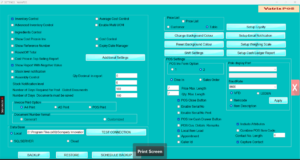
- Tick Include Attributes.
- Click Apply. Close and reopen Vatrix.
- Open Master → Item Master. The item form now shows
an Attribute field next to
Description.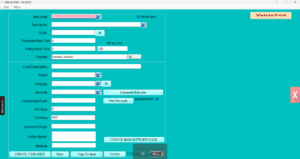
- Create a new item: enter Item Code,
Description, Category,
UOM, Selling Price / Unit, then type
the variant in Attribute (for example
Red-M). - Click CREATE ITEM CODE. Repeat for each variant,
using Copy To Next to keep the same description and
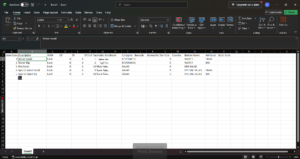
price. - For many variants at once, use CREATE BULK ITEMS.
The Bulk Item Code sheet includes an Attribute column.
Check it worked
Open Transaction → POS Invoice and search the item.
The variant text appears with the item so the cashier picks the right
one. Reports → Stock Report shows stock for each
variant separately.
Common problems
- Attribute field is not visible → Vatrix was not
restarted after Apply. Restart the software. - Variants show the same stock → Each variant must
have its own item code. One item code with different attribute text is
still one stock record. - Barcode label does not show the variant → Tick
Item Description in Barcode Label
Settings and include the attribute in the description.
Video
FAQ
Is Include Attributes the same as a size/colour
grid? It is the simple version. For a full size and colour
variant grid, contact support to check your edition.
Can I turn it off later? Yes, untick the option and
click Apply. Existing attribute text stays in the database but is
hidden.
Does it work with Multi UOM? Yes. An item can have
an attribute and several units at the same time.
Need help?
WhatsApp +971 50 428 2953 · sales@vatrixerp.com · 9:30 am–9:30 pm