

One-line answer: Quick Access puts a shortcut button
for any menu item on the Vatrix dashboard, so cashiers can open POS
Invoice, Sales Report or Stock Report without going through the top
menu. It works the same in every edition: Restaurant, Retail, Retail 2nd
Edition, Salon, Laundry, Weigh Scale and ERP.
Before you start
- Log in as the user who will use the shortcut. Quick Access shortcuts
belong to the login you are using. - The user role must already have permission for the screen you are
adding.
Steps
- Log in. The dashboard opens with your company name, the
Sales distribution over last 30 days chart and the
Quick Access area. - Open the top menu that holds the screen you want, for example
Transaction → POS Invoice or Reports → Sales
Report. - Right-click the menu item. A small menu appears with Add to
Quick Access.
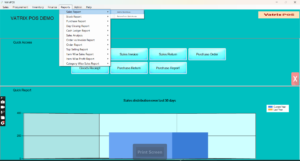
- Click Add to Quick Access. A shortcut button for
that screen appears in the Quick Access area of the dashboard.
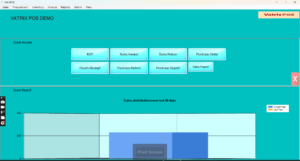
- Repeat for other screens you use often, such as Reports →
Day Closing Report or Master → Item
Master. - Click the new button to open the screen directly.
Check it worked
The shortcut is on the dashboard after you close and reopen Vatrix,
and clicking it opens the same screen as the menu item.
Common problems
- No Add to Quick Access option → you left-clicked
instead of right-clicked. Right-click the menu item name. - Shortcut missing for another user → shortcuts are
per login. Log in as that user and add them again. - Button does not open the screen → the user’s role
lost permission for it. Update the role in Admin → User
Management.
Video
FAQ
How many shortcuts can I add? Add as many as fit on
your screen. Keep the most-used ones so the dashboard stays clear.
Can I add a report as a shortcut? Yes. Any item
under Reports can be added, for example Sales Report or
Stock Report.
Is this the same as keyboard short keys? No. Short
keys are keyboard combinations inside a screen; see Admin →
Short Key’s. Quick Access is a dashboard button.
Need help?
WhatsApp +971 50 428 2953 · sales@vatrixerp.com · 9:30 am–9:30 pm