

One-line answer: Vatrix can create a barcode for any
item that does not carry one from the manufacturer, and print it as a
label with the item name and price. This is used in the Retail, Retail
2nd Edition and Weigh Scale editions for loose goods, garments,
cosmetics and own-brand products.
Before you start
- A label printer must be installed in Windows and selected in
Barcode Label Settings (see How to Setup Barcode
Label Printer with Vatrix POS and ERP). - The item must exist in Master → Item Master.
- Load the correct label roll before you print.
Steps
- Open Master → Item Master and select the item by
Item Code or description. The item details load on the
form. - Click Generate Barcode. Vatrix fills the
Barcode / PLU field with a new number based on the
Barcode Auto generation Settings (starting number set
in Barcode Label Settings).
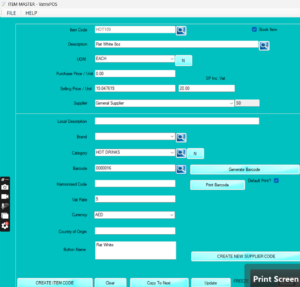
- Click Update to save the barcode against the
item. - Click Print Barcode. The Print Barcode screen opens
with Item Code, Item Description,
Barcode and Qty columns.
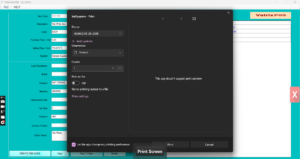
- Enter the number of labels in Qty. To print labels
for more items in the same run, type the next Item Code
and click Add Item. - Click Print. The labels come out of the label
printer with the barcode, item description and price as set in your
label layout.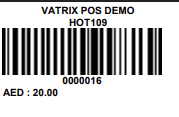
- Scan one label in Transaction → POS Invoice to
confirm the item is picked up.
Check it worked
Scanning the new label in POS Invoice adds the correct item and price
to the invoice line.
Common problems
- Generate Barcode does nothing → the starting number
is not set. Open Barcode Label Settings, fill
Starting No under Barcode Auto generation
Settings and click Save. - Label prints blank or cut → wrong label size. Set
Barcode Label Size width and height to match the roll,
then Apply. - Scanner does not read the label → increase
Barcode Height and Barcode Width in
the label settings and print again.
Video
FAQ
Can I save the barcode as an image instead of
printing? Yes. Click Save Barcode as Image in
Item Master to save a PNG you can use in designs.
Can one item have more than one barcode? Yes. Use
Link barcodes in Item Master to attach extra
manufacturer barcodes to the same item.
Which label printers work? Any Windows label
printer, including POSBOLT P9210, Zebra ZD410 and Dymo 450.
Need help?
WhatsApp +971 50 428 2953 · sales@vatrixerp.com · 9:30 am–9:30 pm