

One-line answer: Barcode Label Settings controls
what your labels look like: the label size, the barcode height and
width, the font, and whether the company name, item description, price
or cost code is printed. Use it in the Retail, Retail 2nd Edition and
Weigh Scale editions to match any label roll.
Before you start
- The label printer must be installed in Windows.
- Measure your label roll in millimetres (width and height of one
label). - Have one item ready to test with.
Steps
- Open Master → Item Master and click BARCODE
PRINT OPTIONS. The Barcode Label Settings screen opens. - Choose your Printer name from the list so labels go
to the label printer, not the receipt printer.
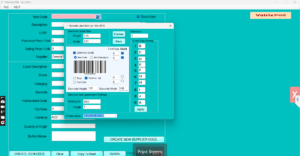
- Under Barcode Label Size, enter the
Width, Height and
Length of one label to match your roll. - Set Barcode Height and Barcode
Width. A taller, wider barcode scans more easily; keep it
inside the label size. - Tick the fields you want printed: COMPANY NAME,
Item Code, Item Description,
Price or Price Inc. Vat, Cost
Code and FC (foreign currency price). Untick
what you do not need.
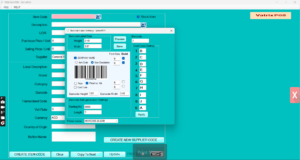
- Set Font Size and tick Bold if the
text should stand out. - If you print a hidden cost code on labels, open Cost Code
Setting and define the letters used for each digit. - Click Preview to see the label layout on screen,
then Save and Apply.
![label preview]](http://vatrixpos.com/wp-content/uploads/2026/09/bar3-300x159.png)
- Print one test label from Print Barcode and scan it
in Transaction → POS Invoice.
Check it worked
The test label shows the fields you ticked, fits inside the label
without cutting, and the scanner reads it on the first try.
Common problems
- Text runs off the label → reduce Font
Size or untick a field. Check the Width and
Height match the roll. - Two labels print for one item → the label
Length is larger than the physical label. Reduce it to
the measured size. - Labels come out of the receipt printer → the wrong
Printer name is selected. Choose the label printer and
click Apply.
Video
FAQ
Can I print the price with VAT included? Yes. Tick
Price Inc. Vat instead of Price.
Can I print labels for weighed items? Yes. Scale
items use the same settings; see Weigh scale: print scale barcode
label and bill weighed items.
Can I print a price in another currency? Yes. Tick
FC and set the rate under FC Exchange Rate or
label print in Admin → Settings.
Need help?
WhatsApp +971 50 428 2953 · sales@vatrixerp.com · 9:30 am–9:30 pm