

Ingredients (recipes) tell Vatrix POS which raw materials to deduct
from stock when a menu item is sold, for example 120 g chicken and 1 bun
for one burger. Importing the list from Excel saves typing when a menu
has many items. Available in the Restaurant, Retail and Weigh Scale
editions with Ingredients Control switched on.
Before you start
- Turn on Ingredients Control in Admin →
Settings (Inventory section) and click
Apply. - Create every raw material as a stock item in Master → Item
Master (flour, chicken, cups and so on) with the correct
UOM. - Create the menu item itself in Item Master, normally as a non-stock
item.
Steps
- Open Master → Item Master and select the menu item
(for example Chicken Burger). - Click Ingredients. The Ingredients screen opens
with the menu item shown under MENU ITEM. - Click Export To Excel. Save the file. This gives
you the exact column layout (Item Code, Description, Qty, UOM).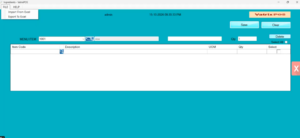
Ingredients screen with Export To Excel and Import From Excel buttons - Open the file in Excel. Add one row per ingredient: the raw material
Item Code, and the Qty used for one unit of the menu item, in the raw
material’s UOM. Keep the header row as it is. Save as .xlsx. - Back in Vatrix, click Import From Excel and choose
the saved file. The ingredient rows appear in the grid.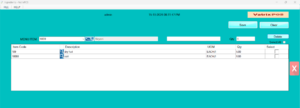
Grid filled after import - Check the Qty and UOM of each line. Tick Select on
any wrong line and click Delete to remove it. - Click Save. Vatrix confirms the recipe is
stored. - Repeat from step 1 for the next menu item. You can reuse the same
Excel file and change the rows.
Check it worked
Sell one unit of the menu item in Transaction → POS
Invoice, then open Reports → Stock Report. The
raw material quantities should have reduced by the recipe amounts.
Reports → Ingredients Report shows the consumption.
Common problems
- Import does nothing or errors → the sheet column names differ from
the exported template. Export again and copy your rows into that
file. - Raw material shows “item not found” → the Item Code in Excel does
not match Item Master exactly (check spaces and leading zeros). - Stock does not reduce after a sale → Ingredients Control is off, or
the raw material is not marked as Stock Item.
Video
FAQ
Can one ingredient be in grams while I buy it in
kilograms? Yes, use Multi UOM on the raw material and enter the
recipe Qty in the smaller unit.
Does the recipe change the menu item’s cost? The
Ingredient Profit Report compares sales to ingredient cost; the item’s
own Purchase Price stays as entered.
Can I edit a recipe later? Yes. Open Ingredients for
the item, change the Qty, delete or add lines and Save again.
Need help?
WhatsApp +971 50 428 2953 · sales@vatrixerp.com · 9:30 am–9:30
pm.